Learn the workflow
Learn to review reports and complete each decision.
Watch the demo
Transcript
Introduction
In this demo, you'll review an expense report in Expense Desk. You'll check the report, decide what happens to it, and complete that decision in the software.
1 · Review the report
Reports that need your review wait in the review queue. To open one, select Review. We'll start with Nina Torres's trip to Portland.
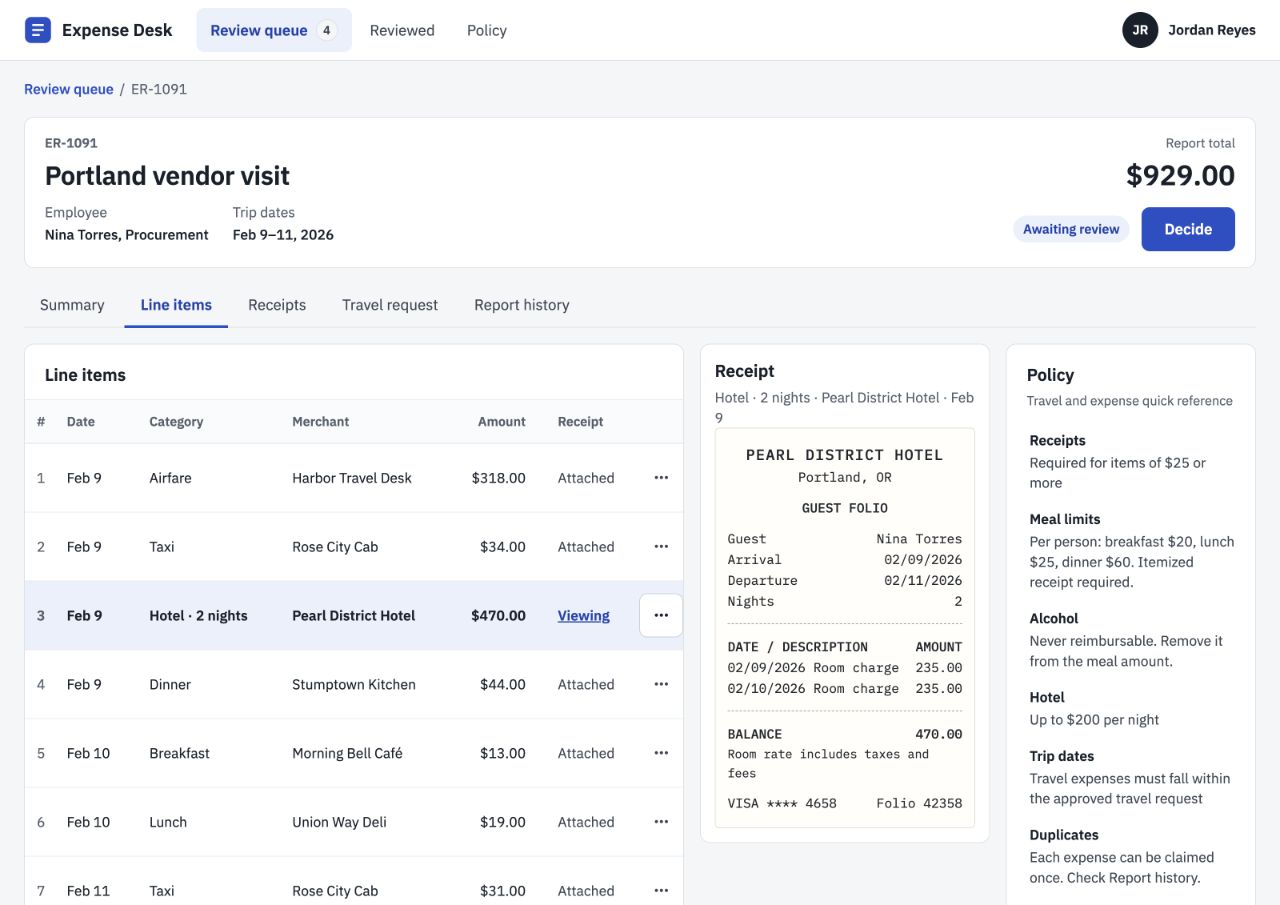
The report opens on the Line items tab. The header shows the employee, the trip dates, the report total, and the status. The Policy panel stays beside every tab, so you can check a rule at any time.
Select a line item to see its receipt. The merchant, the date, and the amount should match the line.
The Summary tab shows the report total. Keep it in mind. It's the first thing you'll check when you decide.
The Receipts tab shows every receipt together. Meal receipts should be itemized, and a hotel folio lists each night and its rate.
The Travel request tab shows the approved trip dates. Every travel expense should fall within them.
The Report history tab lists the employee's past reports. Check it for anything that was already claimed.
2 · Decide
Now decide. Ask three questions, in order, and stop at the first yes.
First: is the report total over $2,500? If so, escalate it to the Finance Manager.
Second: is a required receipt missing, or is a meal receipt not itemized? If so, return the report. The employee can fix that.
Policy clarification: A receipt is required for items of $25 or more; every meal needs itemization.
Third: can any item not be paid as claimed? That means alcohol, an amount over a limit, a date outside the trip, or an expense that was already claimed. If so, adjust that item, then approve the report.
If the answer to all three is no, approve the report.
3 · Complete the decision
Back to Portland. The total is under the limit, and every receipt is attached and itemized. But the hotel folio shows $235 a night, and the limit is $200.
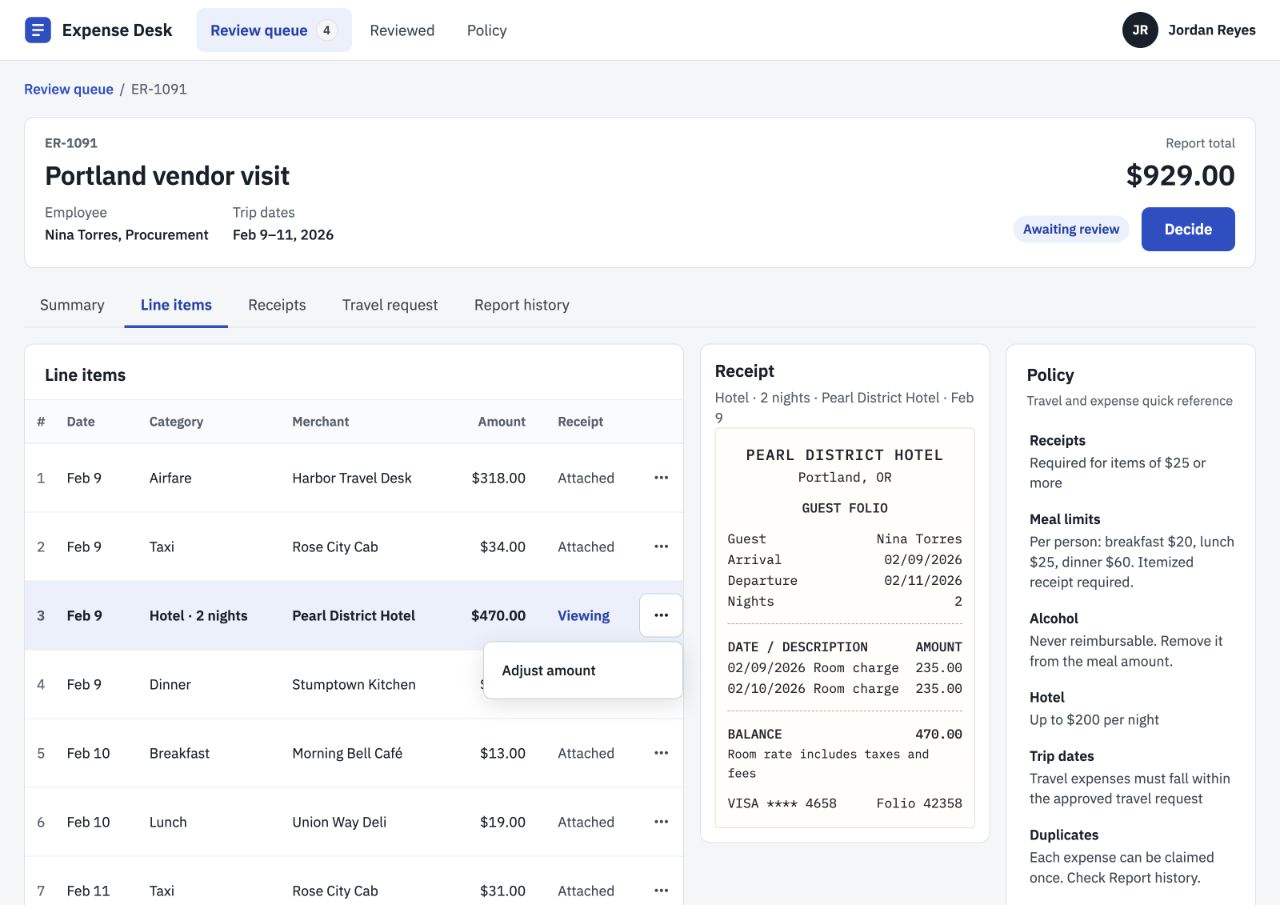
To adjust it, open the menu on the hotel line and choose Adjust amount.
Enter the amount you can pay. Two nights at $200 is $400. Choose the rationale Hotel rate exceeds $200 per night, then save.
The line shows the change, and the report total updates.
Select Decide, then Approve adjusted report. The panel lists your adjustment and its rationale. Select Approve adjusted report to submit.
The report's status changes to Approved with adjustments.
4 · The other decisions
Here's a different case. In Omar Haddad's Phoenix report, the dinner receipt shows only a total. Meals need an itemized receipt.
Select Decide, then Return to employee. Select the dinner, choose Receipt not itemized, and send it. No amounts change, and the employee can resubmit.
Grace Liu's Toronto report totals $2,676. That's over the approval limit, so you stop at the first question.
Select Decide, then Escalate. Choose the rationale, confirm the Finance Manager as the assignee, and select Escalate.
And when every answer is no, as in Ben Carter's Minneapolis report, select Decide, then Approve report. Choose All items within policy, and approve it.
Each decision ends in its own status. Now try it yourself in the practice simulation, and keep the job aid open while you work.
Read the guide
1. Review the report
Open a report from the review queue. Compare the documents and use the Policy panel on the right.
- Summary: Check the total against the $2,500 approval limit.
- Line items: Select each row and compare its merchant, date and amount with its receipt.
- Receipts: Check meal itemization, alcohol, meal limits and hotel nightly rates.
- Travel request: Compare expenses, including each hotel night, with approved trip dates.
- Report history: Expand past reports and check for matching receipts.
Receipts are required for items of $25 or more. Every meal needs an itemized receipt.
2. Decide
Ask in order. Stop at the first yes.
- Is the report total over $2,500? Escalate.
- Is a required receipt missing, or is a meal receipt not itemized? Return to employee.
- Can an item not be paid as claimed? Adjust and approve.
No to all three? Approve the report.
Return or adjust? Return a problem the employee can fix, such as a missing receipt. Adjust an expense that policy does not allow, such as alcohol or a duplicate.
3. Complete the decision
Adjust and approve
On Line items, open the affected row’s ⋯ → Adjust amount. Enter the reimbursable amount, choose its rationale and save. Repeat for each affected item.
Example: two hotel nights at $235 exceed the $200 nightly limit. Enter $400 and choose Hotel rate exceeds $200 per night. Enter $0 to remove an entire item, such as a duplicate.
Select Decide → Approve adjusted report, check the adjustments and submit.
Return to employee
Select Decide → Return to employee. Select each item the employee needs to fix and choose a rationale for each. Select Send to employee. Submitted amounts stay unchanged.
Escalate
Select Decide → Escalate. Choose the rationale, confirm the Finance Manager as assignee and select Escalate.
Approve report
Select Decide → Approve report. Choose All items within policy and select Approve report. Undo any adjustments first.
Each submission shows the report’s final status and feedback on your decision, software steps and rationale.
Ready to try it?
Review reports in Expense Desk.